1Password has finally released this wonderful bookmarklet for the iPhone. You no longer need to type those long Usernames and difficult to guess passwords!! Everything is taken care-of by 1Password;a nifty Mac application to secure your online activity.
Let us waste no more time and jump to the internals of this entire setup. You need the following to work :
1) iPhone
2) 1Password ($29.95, I have 2 copies from Macheist if anyone is interested)
3) Mac
Assuming you have 1Password from the recent Macheist bundle, let us configure the application on your Mac :
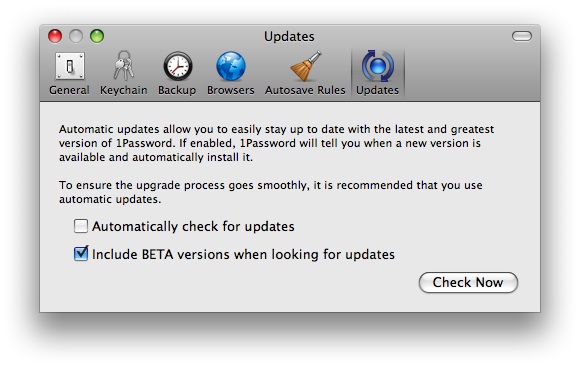
1) Launch 1Password -> Preferences and make sure the ‘include beta versions’ check box is checked as shown below.
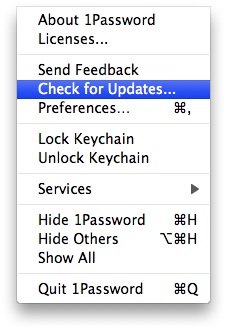
2) Click on ‘File’ -> ‘Check for Updates’
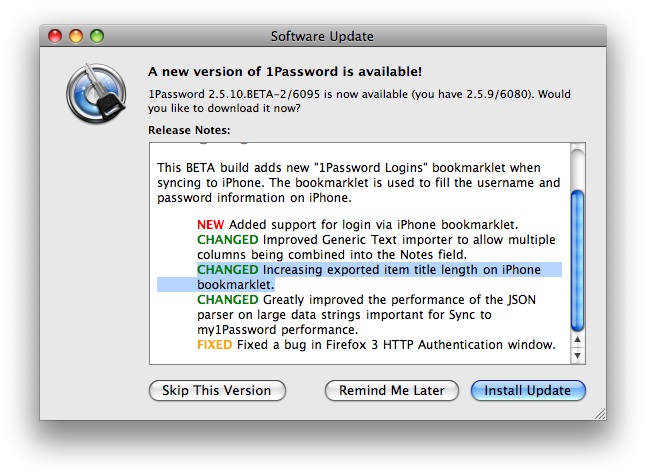
3) Click on ‘Install Update’
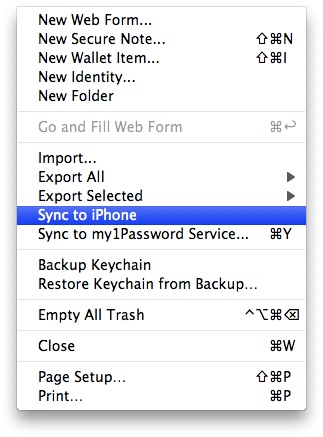
4) Click on ‘File’ -> ‘Sync to iPhone’
5) Set up a pass-code when prompted. Make sure it is strong and short as you are going to enter it on your iPhone every time you access 1Password on your iPhone.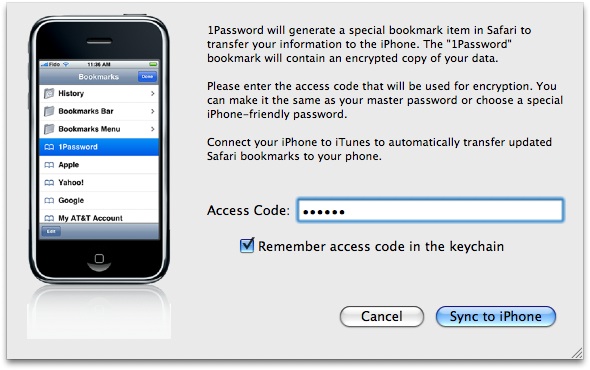
6) Now, connect the iPhone to your Mac and sync with iTunes (Make sure sync bookmarks is checked under info in iTunes).
You are done with configuring on your Mac, lets move on to the best part..
On the iPhone front :
1) Open a site (‘Chitika’ in this example) which you frequently visit! Assuming that you have the user/pass stored on your Mac for this site, click on the bookmarks icon on your iPhone.
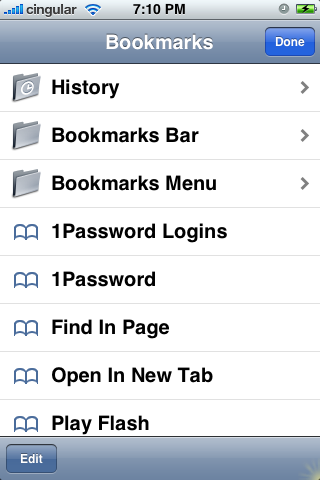
2) Click on ‘1Password Login’. You should see a pop up asking you your access code you set up on your mac.
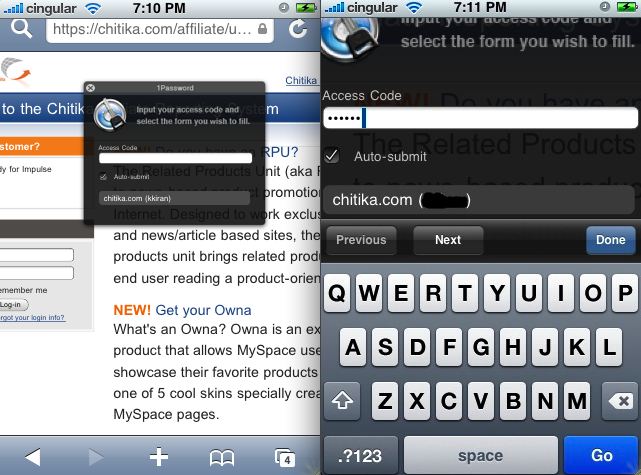
3) You have successfully saved some time typing in your user credentials!!
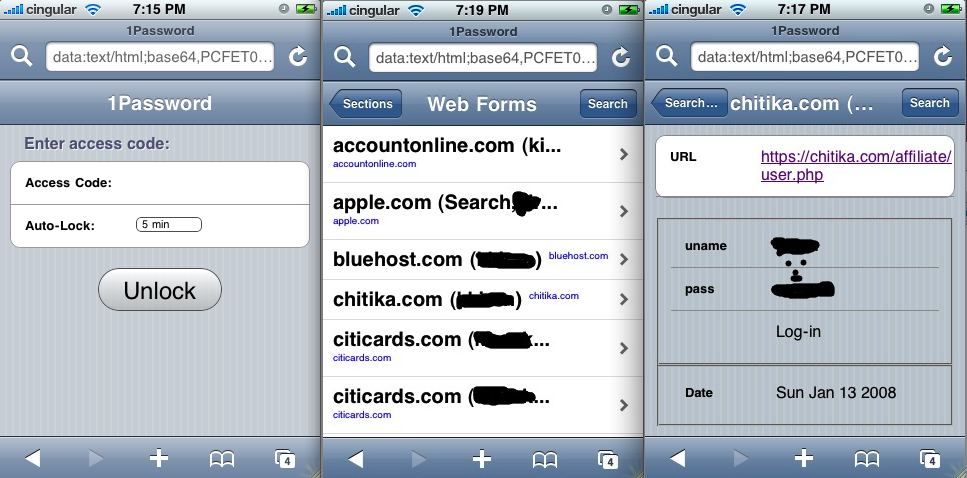
You can even search for the sites which have the user/pass stored in the bookmarklet as shown here. Just click on Bookmarks -> 1Password. (Not 1Password login).
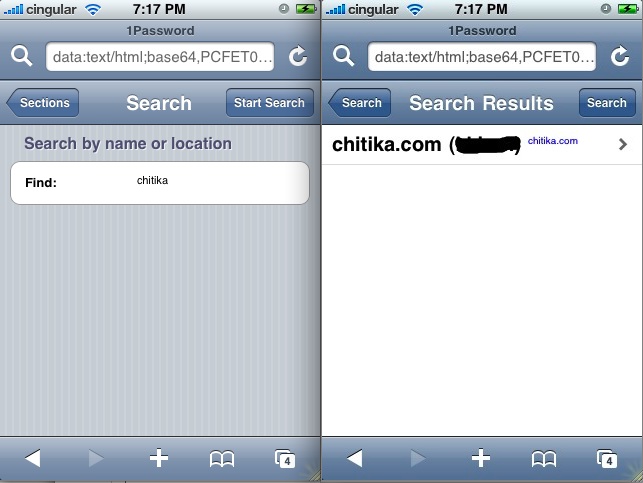
You can even view a list of all the sites and the respective user credentials. You are asked for your passcode just to make sure only you can access the info!!
Check this detailed review from the developer himself!! Great work Dave!
I'd love to purchase one of those licenses with you. Can you mail me about it? I assume you have PayPal?
Thanks for the guide, I will give it a try.
Is your macheist bundle still availabe? I would like to buy it. Please drop me a mail.
@ Christian : Yep, I have 2 licenses for 1 Password. Paypal is just fine!! Check your inbox!
@ Steffen : I have only one bundle left. It will be $33 as I said before. Check your inbox.
I’d like to buy your copy for $10.00. Pls send me instructions.
1Passwd for iPhone looks incredible. If you still have a 1Passwd license, I’ll buy it.
Sorry guys, the 2 licences I had were sold on a first come first serve basis….
Wow! Even your secure notes are transfered to the iphone. I love it! That made my day 🙂
@ Steffen : I am glad that helped you 🙂 Have a great time saving lotta time keying secure info!!
I don’t see how you went from Step 3 to searching the Secure Notes and Wallet items. Could you please provide a bit more detail?
Thanks,
Jack
@ jack : I updated step 3!! Now you should be able to do that!
I have tried this on several sites that require login and after I click on the 1Password Login bookmarklet and then type in the access code then press the button below for the site I want to login to I just get returned to the login page. Any suggestions?
@ Cindy : Oops, I never encountered such an issue so far. Could you list down the names of such sites such that I can try and let you know 🙂
I tried it with chase bank login, american express card login, the user forum for 1password (I believe it is at agilewebsolutions). Interestingly it worked for my Discover Card login.
@ Cindy : Citicards login woks just fine. I couldn’try Chase, AE cos’ I don’t have an acount. A possible security feature I believe??
Don’t know, but I can login to these sites using the regular 1password autologin interface from my computer.
Then this is something that needs to be reported to 1Password. The problem might be with bank’s security feature with certain browsers. I tried with 1Password forums, it doesn’t work with their own site!! I will report the error 🙂
Just curious — it looks in the screenshots like there is at least one view where you can actually see the password you’ve saved, as opposed to *****. Is that the case?
The reason I ask: I’ve been looking at this app (after switching from a Treo), but in spite of the awesome auto-fill feature, there ARE times when you want to look up a password so you can enter it manually somewhere else.
For example (though I’d never do this) say you keep the PIN number for your ATM card in 1Password because you can never remember it. If I’m standing at the cash machine, I need to see the actual data rather than ****.
Maybe this is what “Secure Notes” are for?
Sorry, I haven’t found this clearly addressed on the developer’s site…
Thanks for any insight.
Hi!! Yep, this issue is pretty much addressed! All you have to do is : Click on 1Password rather than 1Password Logins, provide your unlock code and there you can see all the passwords saved on your phone!! As simple as that! Let me know if that answers your question 🙂
Perfect, thanks. I’ll be purchasing this week.
Once you set up 1Password with a list of your passwords do you have to have internet access in order to see your passwords? Sometimes I may be out of AT&T coverage and still need to see my passwords.
Thanks
Internet is not a must to see your stored passwords. You can launch 1Password bookmark and enter the auth code to see all your passwords 🙂
What about us i-phone owners who have a PC? I love roboform… and need some kind of password vault. Can i-password be used with the i-phone alone, or synced from a pc, or do you need a mac?
I am afraid we need a Mac to use this. If you have a Mac and Windows computer, then you can export the data to Firefox and sync them back to the iPhone. THat is the best I found out there until Windows users are given a release of 1password’s Mac offerings 🙂